KDP margin guide templates
Free true-size overlays that show where KDP's minimum margins fall on the page: the trim line, the bleed zone, and one inside-margin line for each page-count band.
| Trim size | No bleed | With bleed |
|---|---|---|
| 6 x 9 in | PDF SVG, odd page SVG, even page | PDF SVG, odd page SVG, even page page 6.125 x 9.25 in |
| 5 x 8 in | PDF SVG, odd page SVG, even page | PDF SVG, odd page SVG, even page page 5.125 x 8.25 in |
| 5.5 x 8.5 in | PDF SVG, odd page SVG, even page | PDF SVG, odd page SVG, even page page 5.625 x 8.75 in |
| 8.5 x 11 in | PDF SVG, odd page SVG, even page | PDF SVG, odd page SVG, even page page 8.625 x 11.25 in |
| 8.25 x 8.25 in | PDF SVG, odd page SVG, even page | PDF SVG, odd page SVG, even page page 8.375 x 8.5 in |
| 7 x 10 in | PDF SVG, odd page SVG, even page | PDF SVG, odd page SVG, even page page 7.125 x 10.25 in |
| 8.5 x 8.5 in | PDF SVG, odd page SVG, even page | PDF SVG, odd page SVG, even page page 8.625 x 8.75 in |
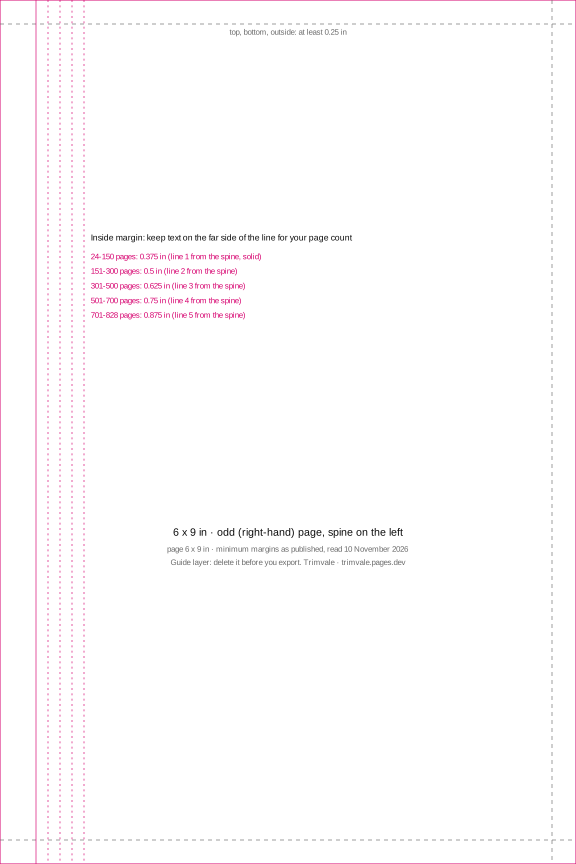
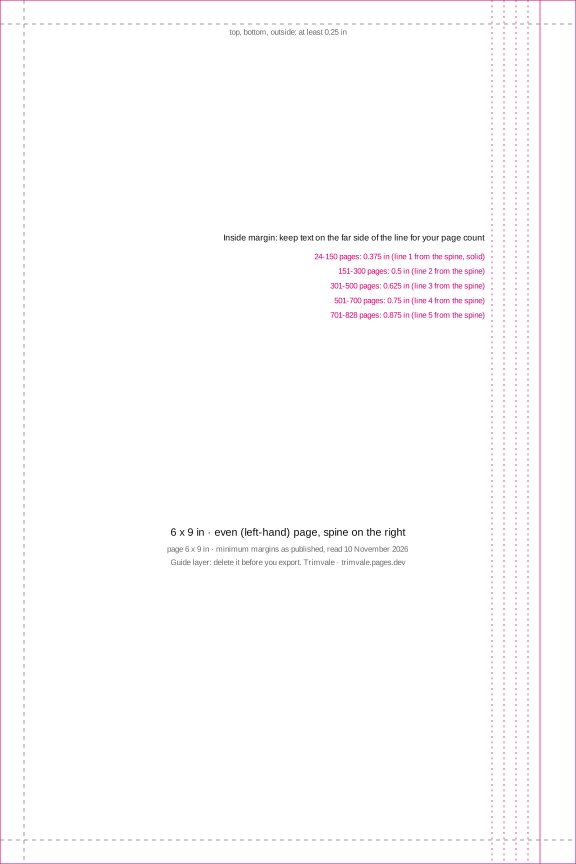
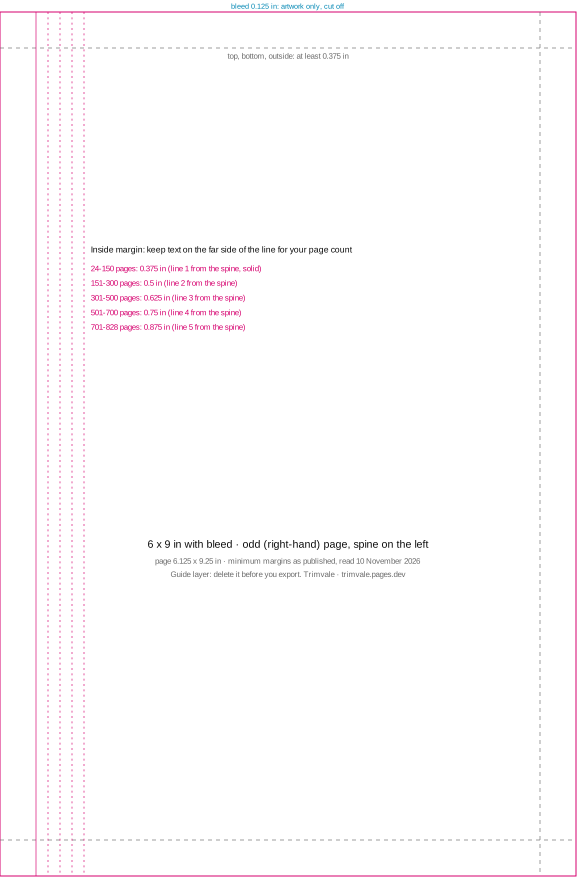
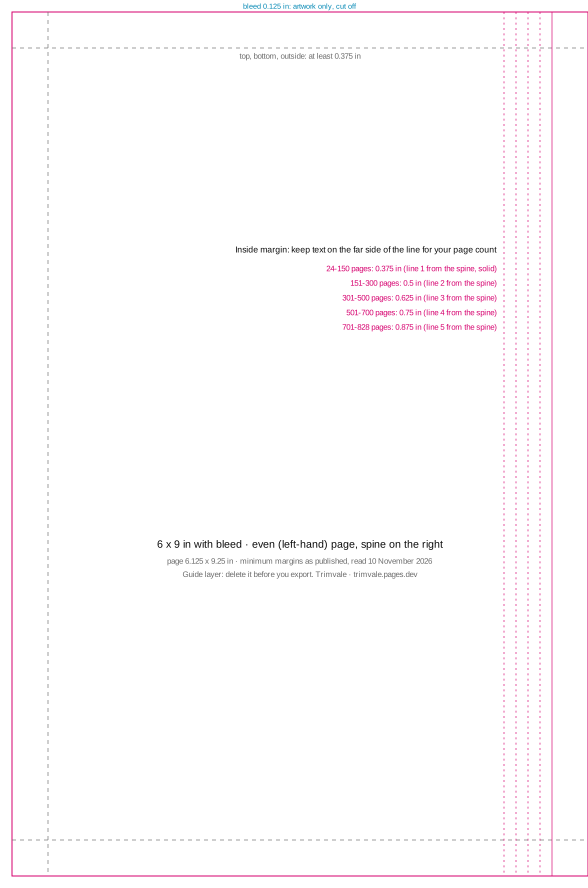
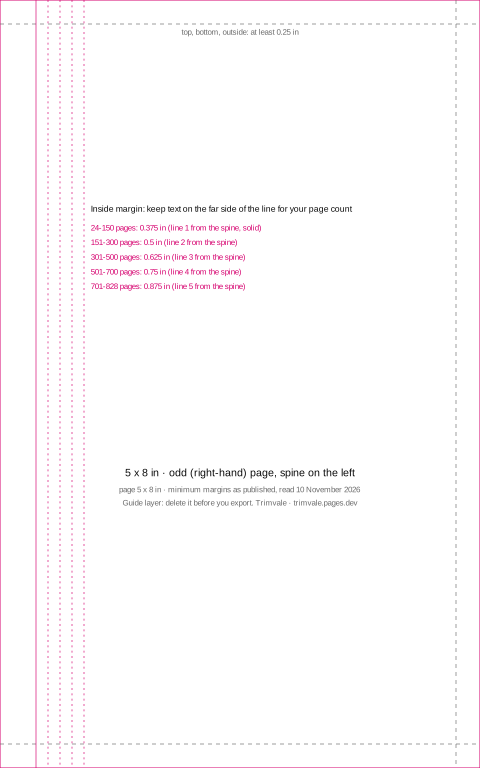
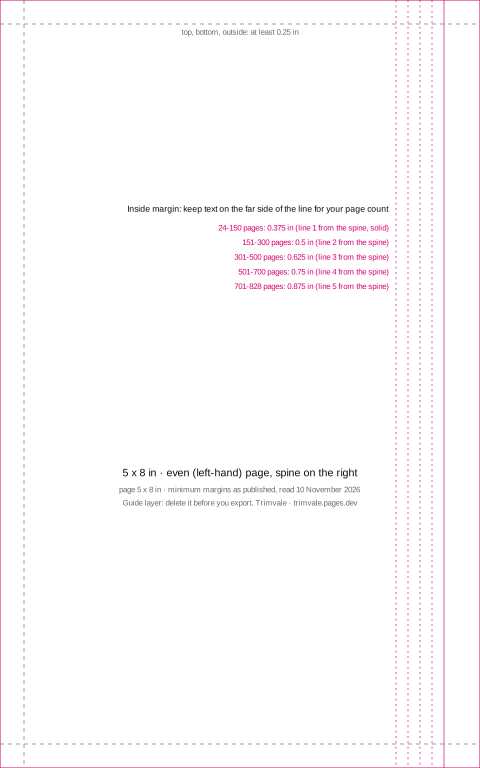
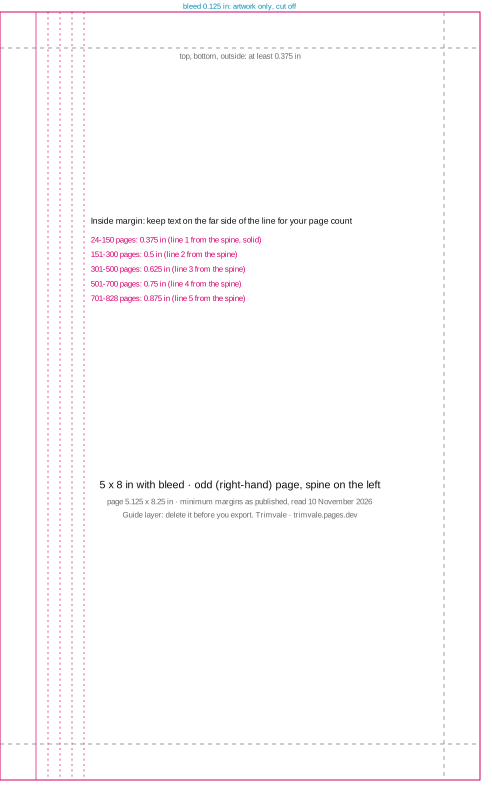
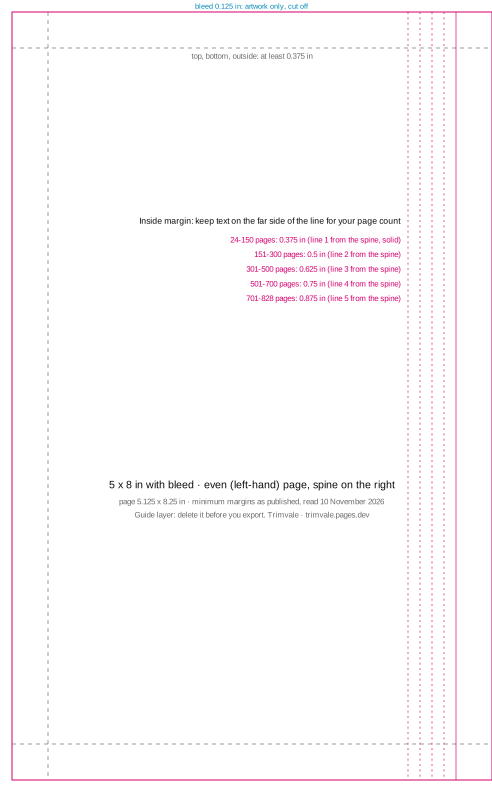
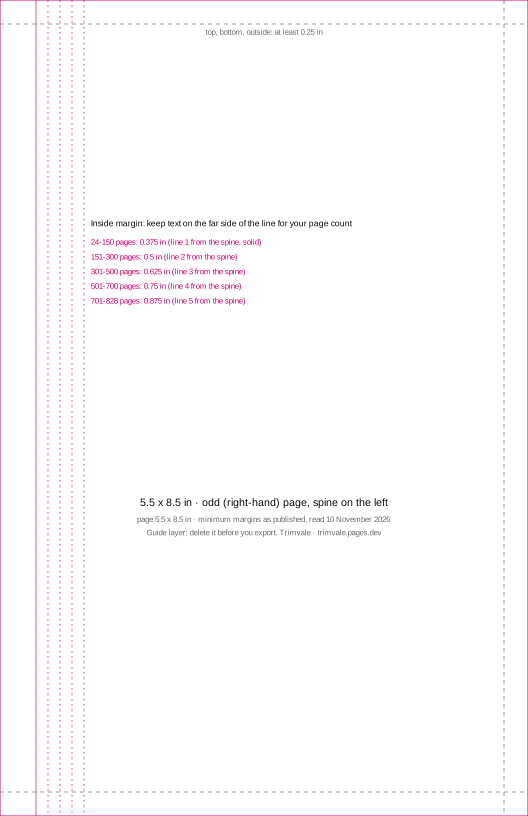
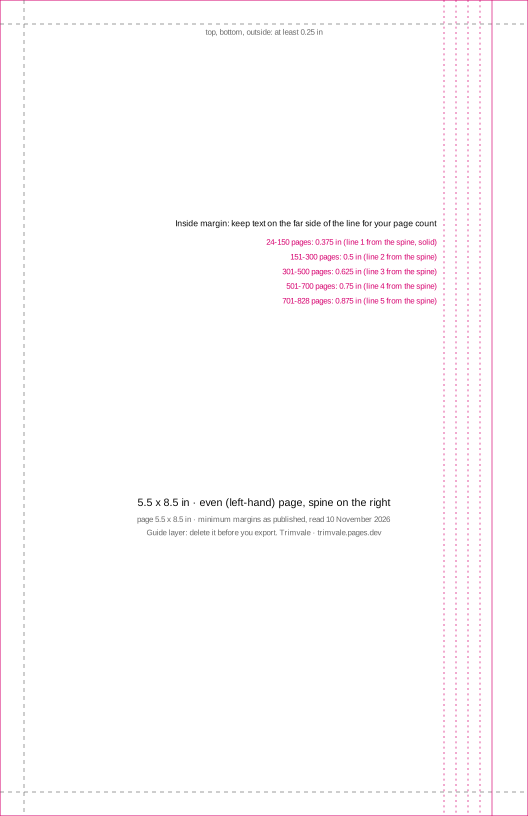
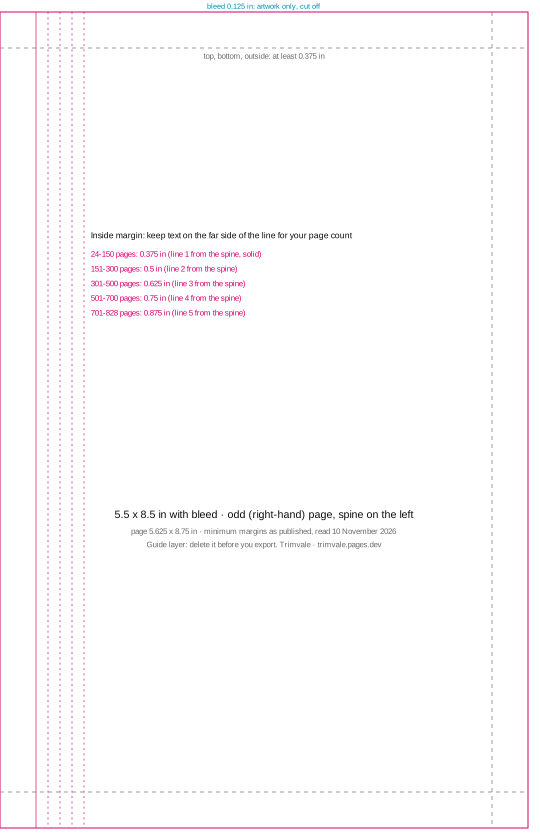
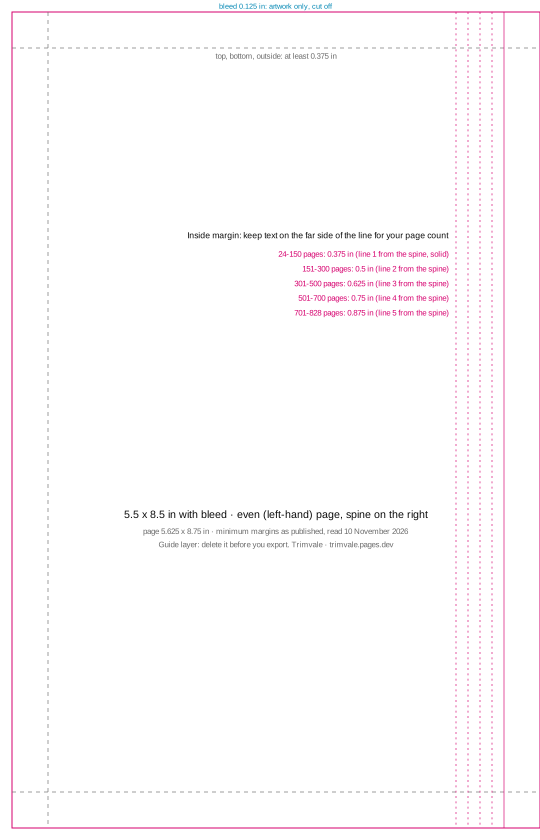
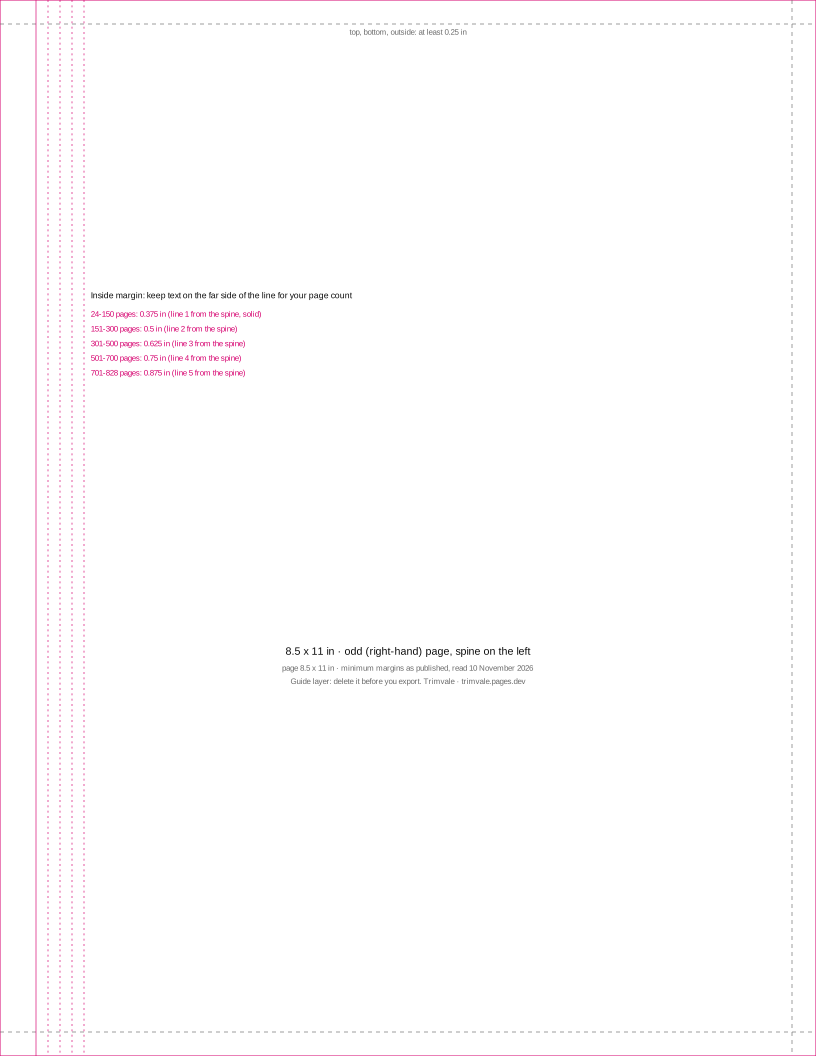
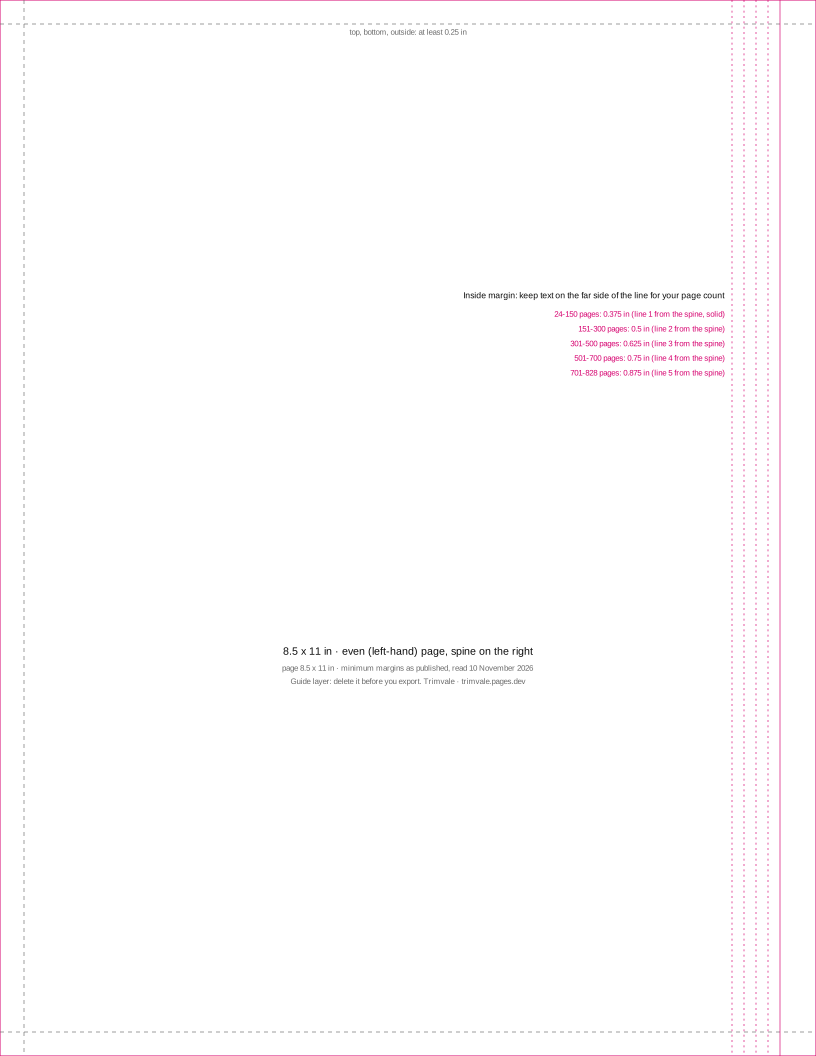
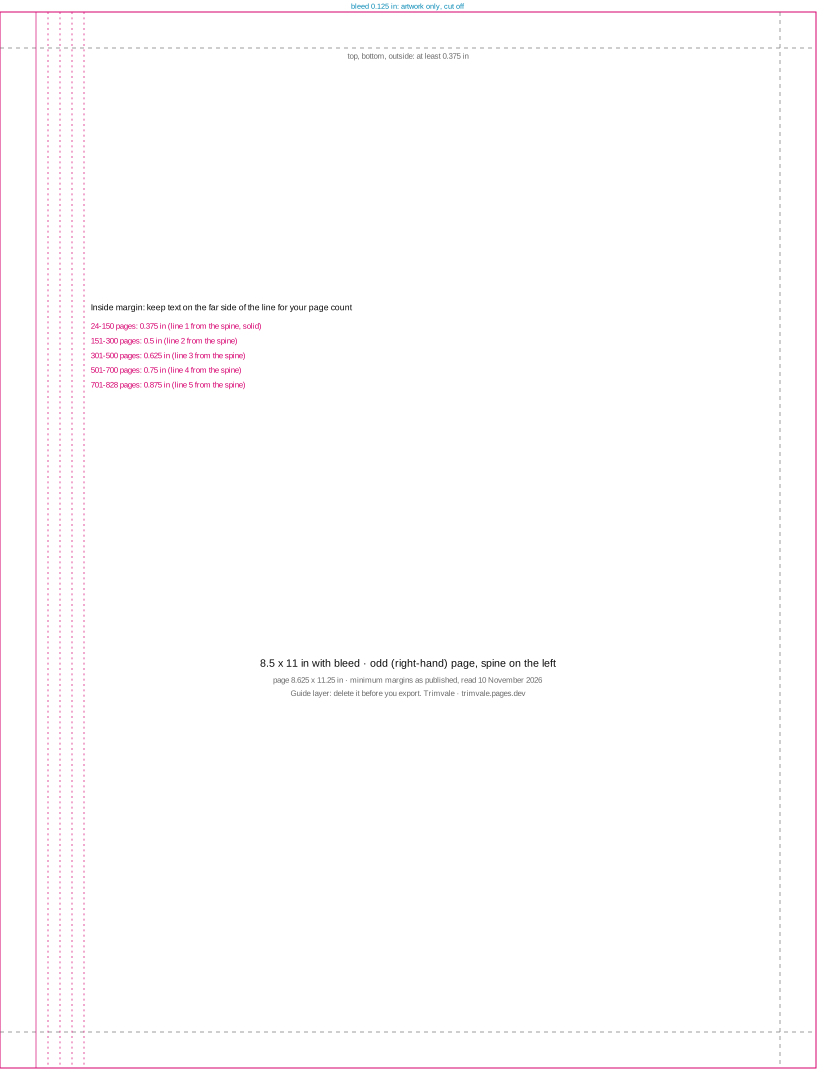
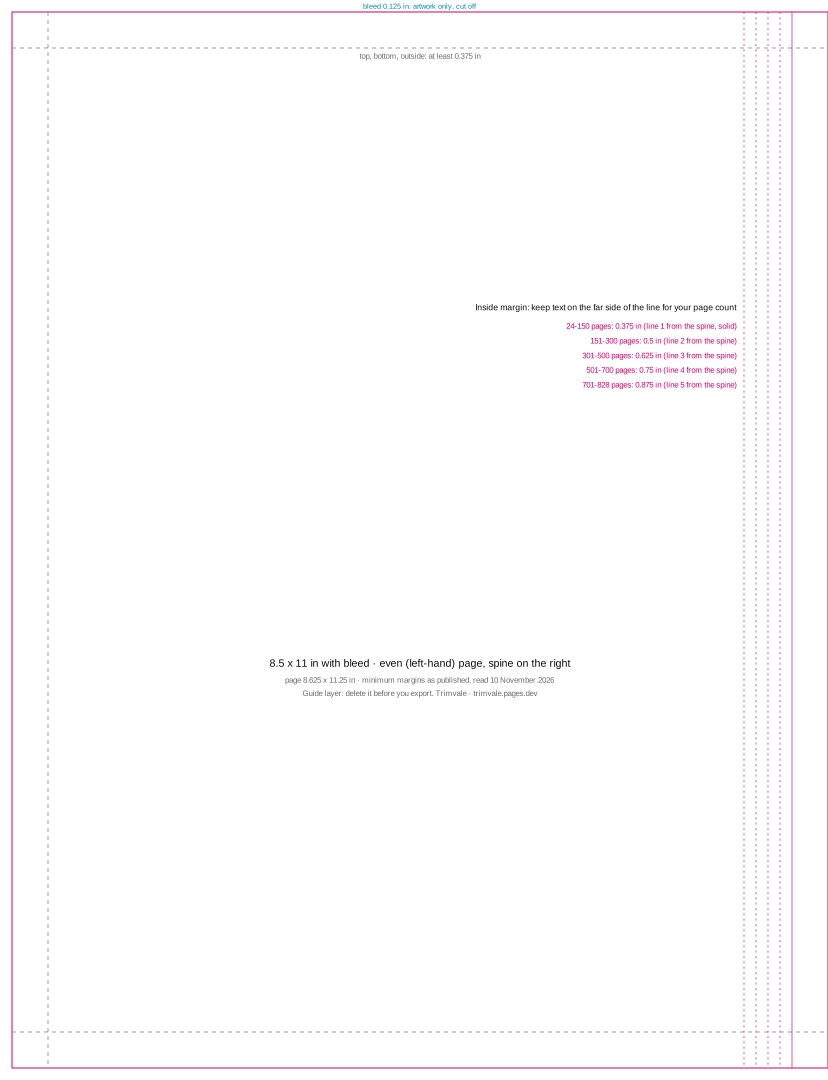
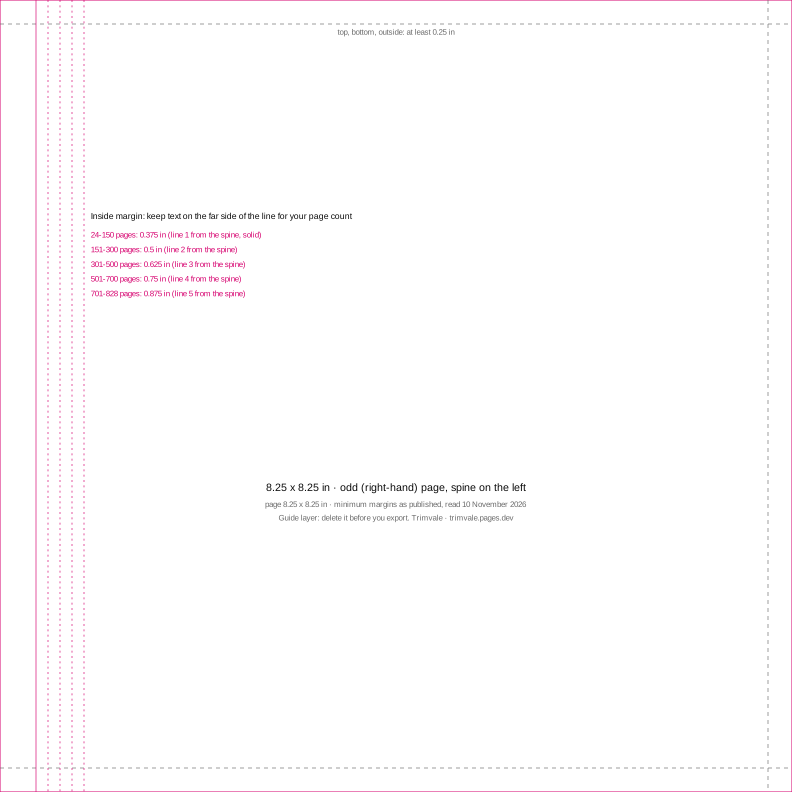
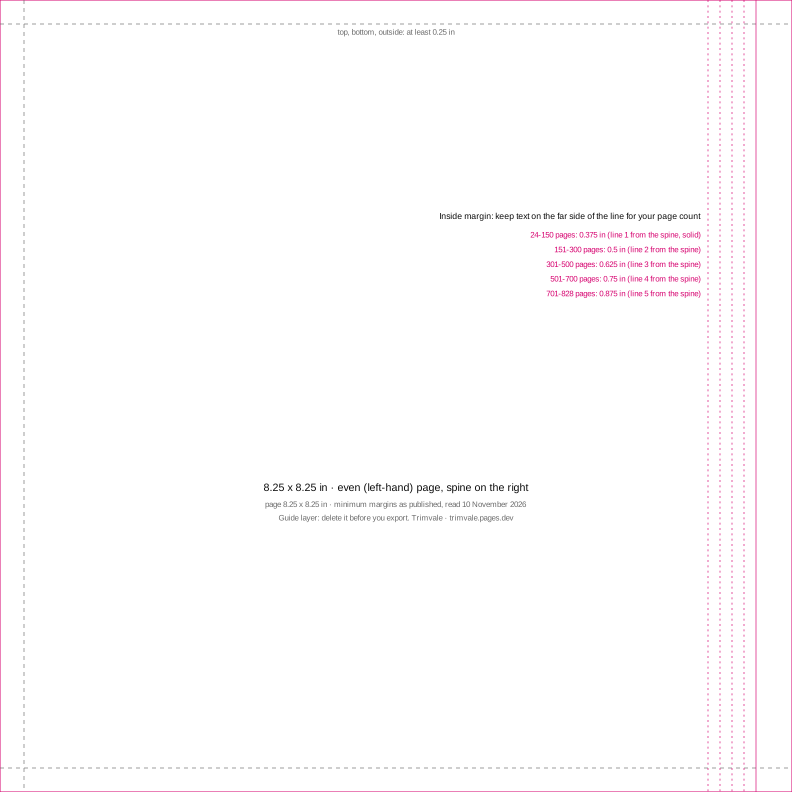
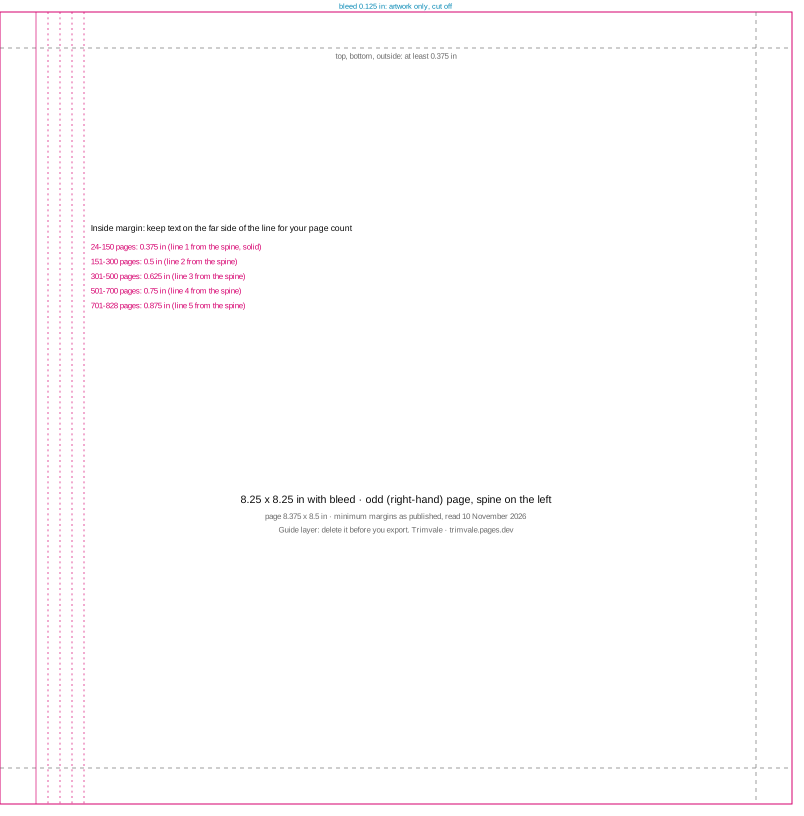
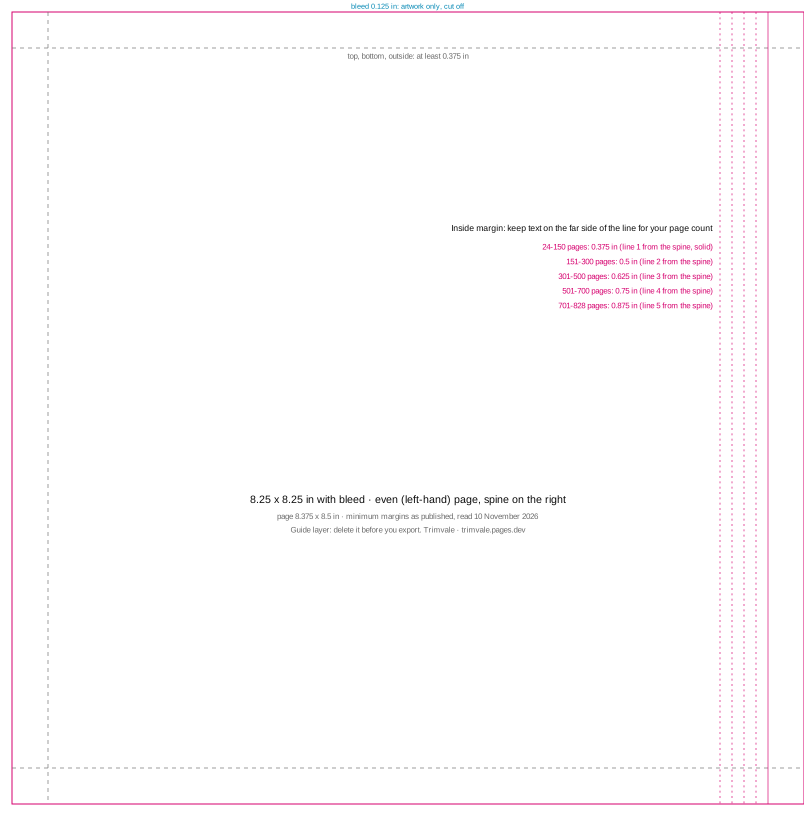
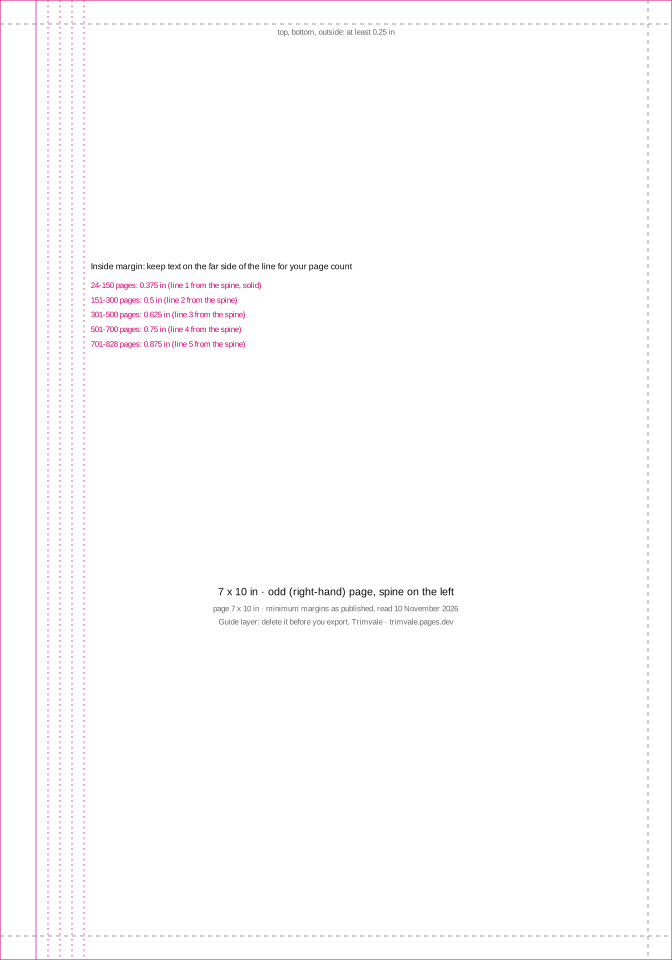
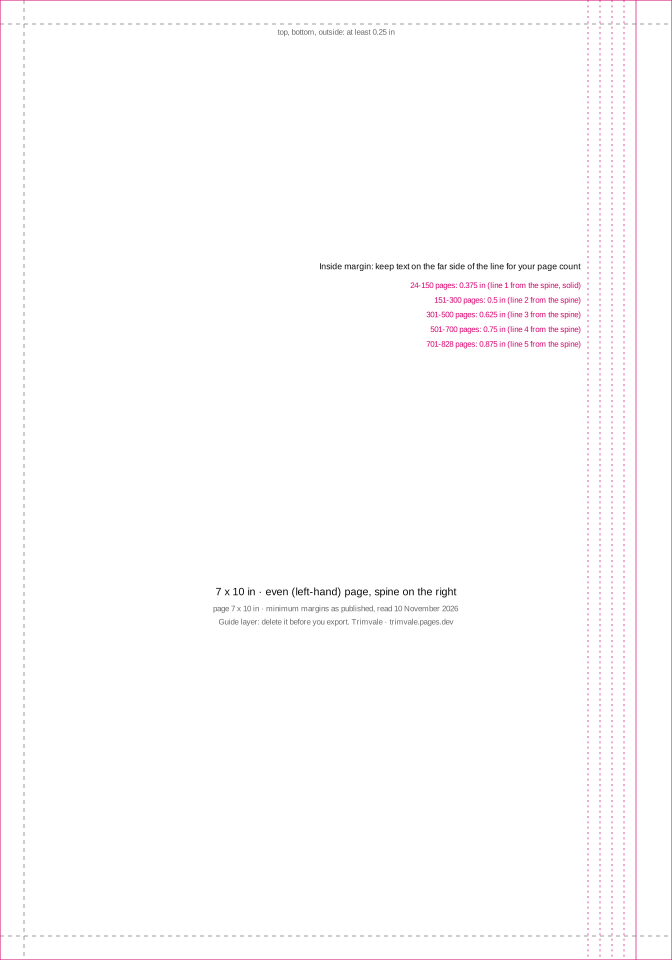
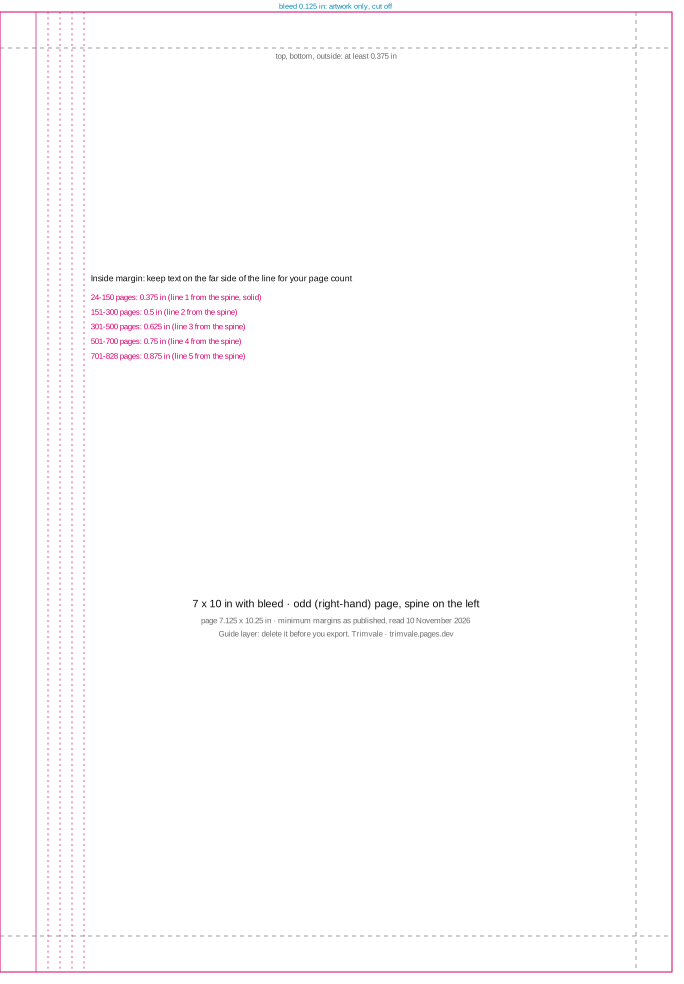
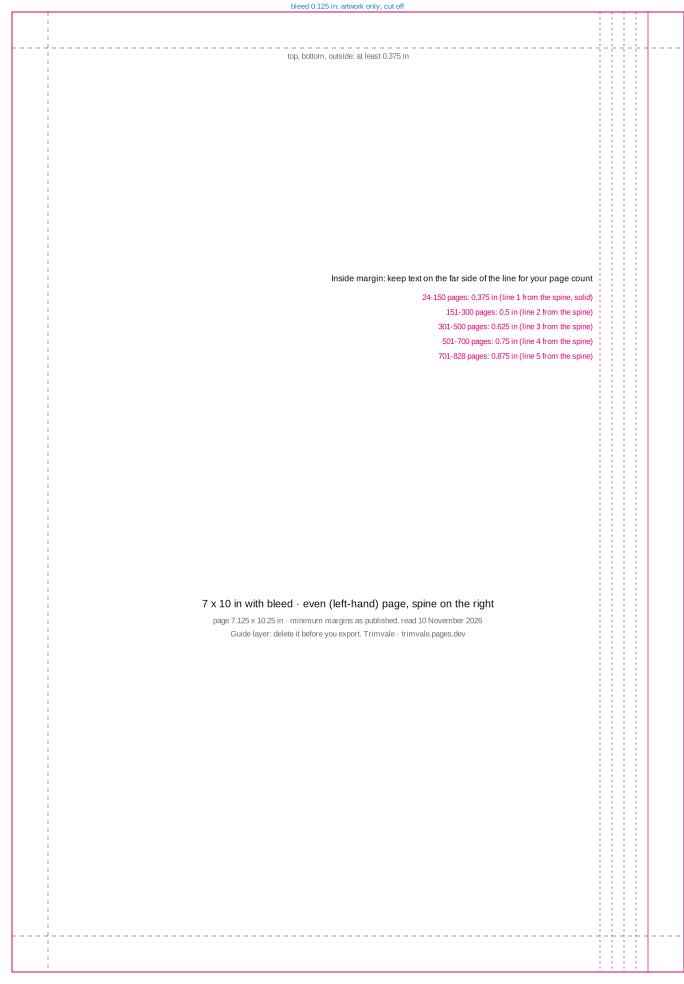
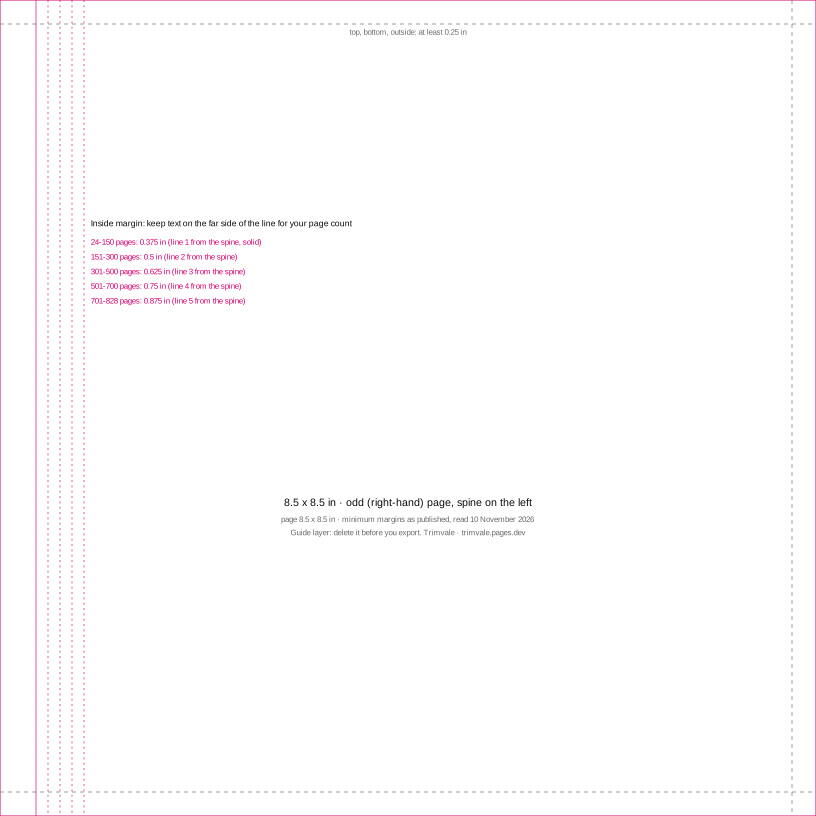
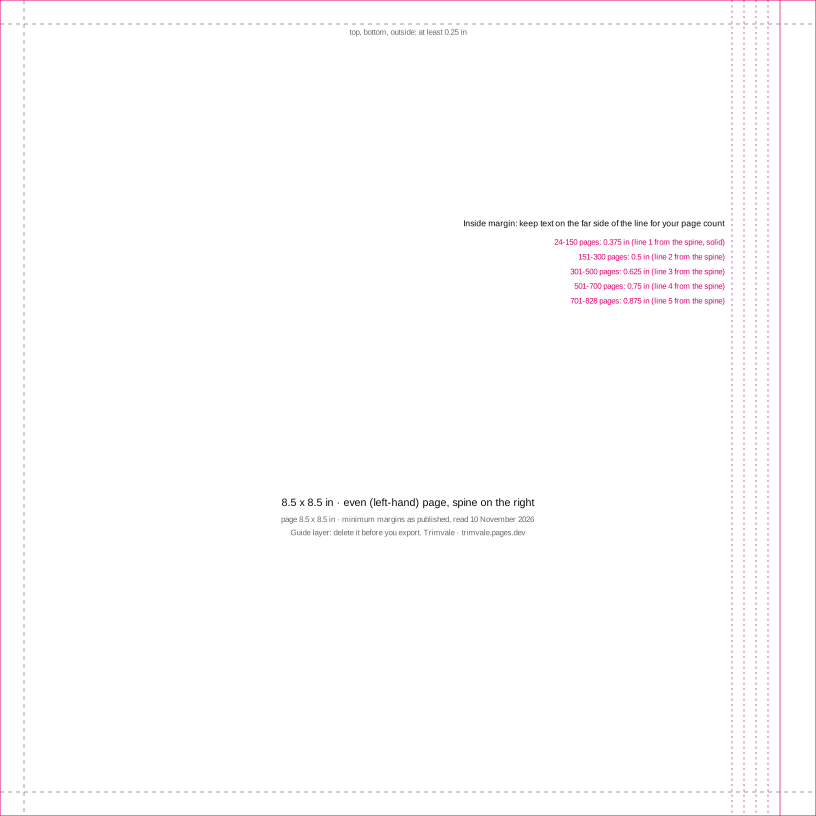
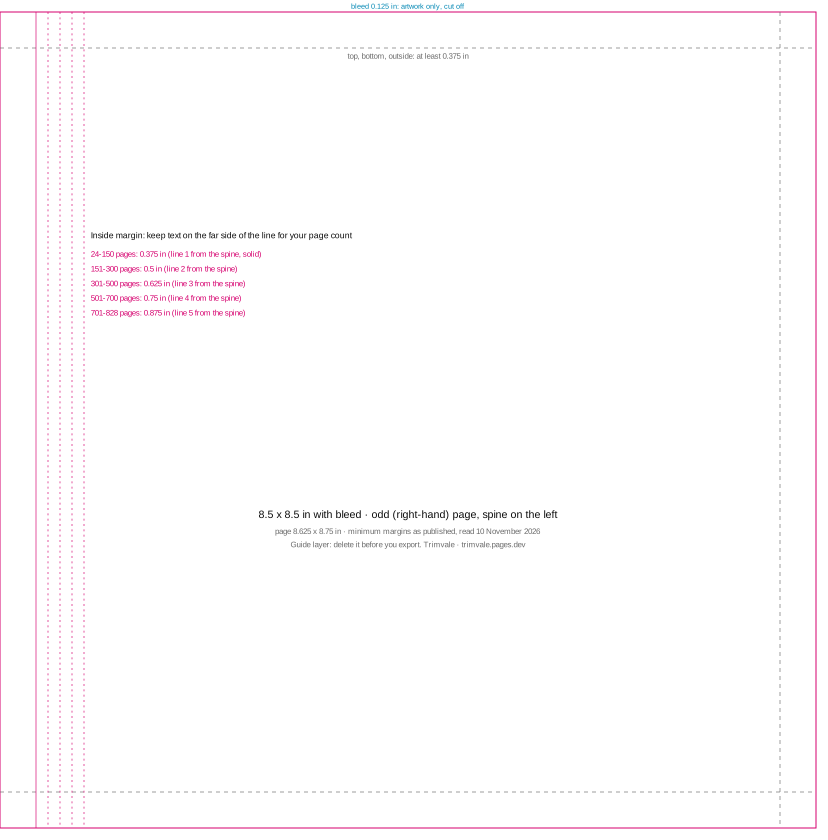
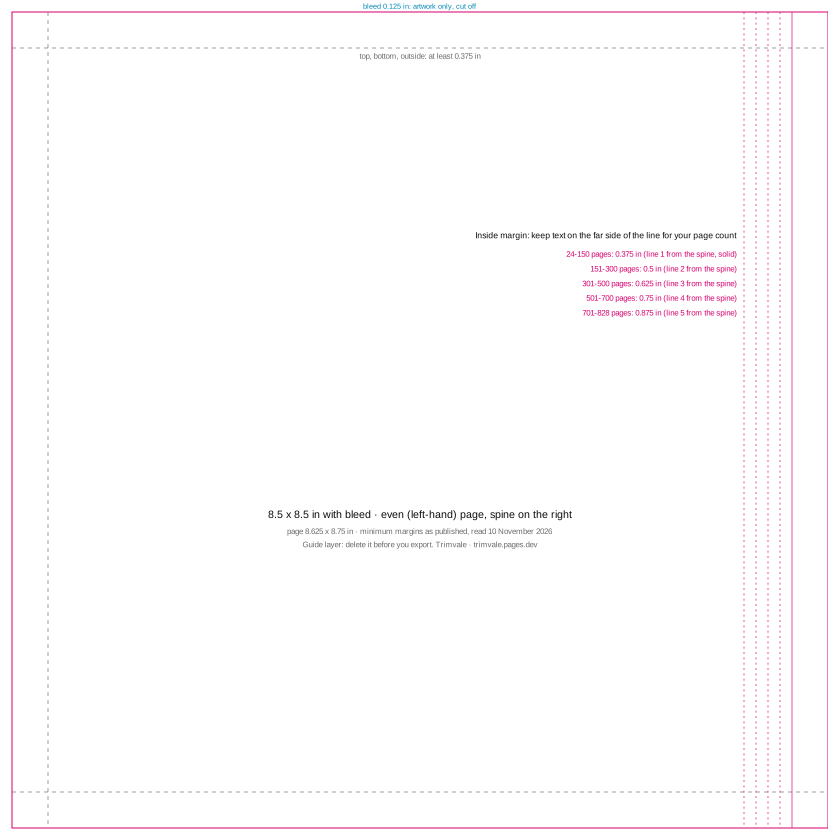
Source: KDP help, Set Trim Size, Bleed, and Margins. Read on 10 November 2026.
How to use a guide
- Download the guide for your trim size. Pick the no-bleed guide unless pictures or colour run to the page edge. The PDF has an odd and an even page; the SVG files are one page each.
- Place it over your page at 100%. Import the SVG or PDF into your design tool and place it at full size on top of the page, without scaling. The magenta outline should sit exactly on the page edge (or, with bleed, on the trim line).
- Keep text behind the lines. Keep text on the far side of the inside-margin line for your page count, and inside the dashed line on the other three sides. Use the odd guide on right-hand pages and the even guide on left-hand pages.
- Delete the guide, then export. Remove the guide layer from every page before you download the PDF, or its lines will print.
- Check the exported PDF. Drop the PDF into the checker to measure the margins on every page before you upload it.
Check the margins in your exported PDF
What is on each guide
| Line | Meaning | Distance |
|---|---|---|
| Solid magenta outline | Trim line: where the page is cut | The trim size |
| Magenta lines near the spine | Inside (gutter) margin for each page-count band | 0.375 to 0.875 in from the spine edge |
| Dashed grey lines | Minimum top, bottom and outside margin | 0.25 in, or 0.375 in with bleed |
| Space outside the outline (bleed guides) | Bleed: artwork only, cut off after printing | 0.125 in at the top, bottom and outside edge, none at the spine |
The guides are drawn from the same numbers as the tables on this site. Other sizes: use the margin calculator. Free to use, share and link to.
Questions
Can I upload the guide PDF as my book?
No. It is a ruler, not a book template: it has lines printed on it and only two pages. Use it as a layer while you design, then delete it.
Why are there five inside-margin lines?
The inside margin grows with the page count: 0.375 in up to 150 pages, 0.5 in up to 300 pages, 0.625 in up to 500 pages, 0.75 in up to 700 pages, 0.875 in up to 828 pages. Each line is labelled with its page range.
Can I share or sell books made with these guides?
Yes. The guides are free to use for any book, and free to share or link to. They contain only measurements.
Does KDP offer its own templates?
Yes, for Microsoft Word. Its help page says: "The blank templates have the page size and margins set." These guides are for design tools that work with pages as pictures, where a Word template does not help.